This is a review of the Microsoft Surface, though it won’t be like most other reviews you read. I’m going to focus my effort on positioning the Surface in today’s so-called “post-PC” era. You want unboxing, descriptions of buttons and connectors, spec comparisons, etc. then this isn’t the review for you. You want real world insights, then stay tuned.
I received my Surface on October 26th, having pre-ordered it from the Microsoft Store on October 16th. It is the 64GB model with black Touch Cover. I also ordered a separate Type Cover thinking that I’d normally use the Touch Cover, but switch over to the Type when I knew I was going to be doing an intense amount of typing. I’ll talk more about the two keyboards in actual use later on.
Before getting to the Surface itself let me introduce a positioning concept that will come in handy later. In earlier postings I’ve talked about the key differentiator between tablets such as the iPad and PCs (be those Windows or Mac) being along the dimension of Content Consumption vs.. Content Creation. Tablets are optimized for Consumption while Notebooks/Desktops/Workstations are optimized for Creation. It’s an imperfect model, for example Windows Media Center turns a PC into a Consumption-oriented device, which brings to mind a truth I heard long ago: all models are flawed, some models are useful. The Consumption vs. Creation model is very useful. Now obviously there are other dimensions to consider as well, for example degree of mobility. I won’t ignore those dimensions here, but they aren’t as big a focus. I created the following slide to make this clearer and I’ll be referring to it in a number of places along the way.
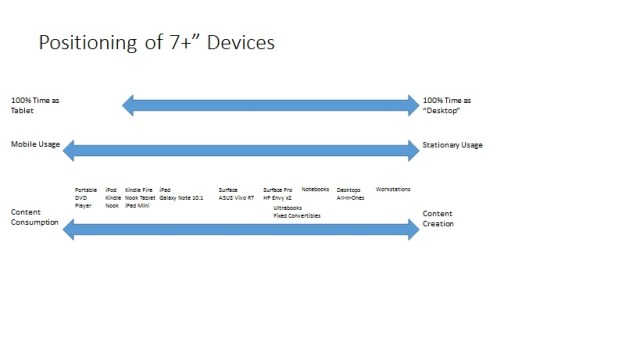
The above slide is meant to be read from bottom up, and briefly shows where devices are positioned (in terms of design center) along the Content Consumption to Content Creation dimension. So a device like an iPod is designed almost purely for consumption of music and a Kindle is designed almost purely for consumption of ebooks. At the other extreme, a workstation being used for the design of aircraft parts is designed almost exclusively for Content Creation. This doesn’t mean you can’t use these devices for other things, it just talks about what they are designed (aka, optimized) for. Now on to the Surface.
The Surface is a great tablet. It is amazingly well-built and well thought out. As a pure piece of engineering it stands as an equal to the best Apple or anyone else has to offer. When you add Windows RT to the mix you get something that is, in the context of use as a “pure” tablet, a strong competitor to the iPad. There are definite differences, some strongly in the iPad’s favor (e.g., number of applications currently available), and some in Surface’s favor. In most cases the significance of those differences comes down to personal preference. Let me give an example.
The iPad, with its growth out of the iPhone, started life as a Portrait-orientation optimized device. It could always do Landscape orientation, but most apps didn’t take advantage of that. These days many iPad apps give a much better experience in Landscape because they can put a navigation pane on the side of the content whereas in Portrait they have to keep the navigation pane hidden until you specifically ask for it. The iPad feels more comfortable in your hands in Portrait than in Landscape, although when used propped up on a flat surface it is always in Landscape. I’m not rendering judgments here, just pointing this out because Surface is so different.
Surface is optimized for Landscape orientation when in hand or propped up on its hinge. It feels really good in the hands when held in Landscape. Yes it works in Portrait, but it feels odd that way. Microsoft chose a 10.6″ 16:9 aspect ratio display that makes the Surface feel long and narrow in the hand when held in Portrait orientation. Of course this may be more odd in countries that standardize on 8×10 paper than A4. An iPad is more like an 8×10 pad of paper while the Surface is more like A4, perhaps making Americans the odd man out.
Why did Microsoft make this tradeoff? Three reasons are apparent. The first is that Surface is optimized for display of HD video. The second is a feature unique to Windows RT (or 8) of allowing a second application to be snapped to the edge of the screen. While this can be done on a more typical 10.1″ display the extra space on the Surface makes for a better experience when multiple apps are in the foreground. The third reason is one you’ll have to wait for.
The Portrait vs. Landscape orientation optimization could be a deal breaker for some users, especially if you rush to judgment. I loved the Portrait orientation of my iPad and worried about my transition to a Landscape optimized world. So far I find I’m adjusting well, but if this is a deal breaker for you then you might want to look at the ASUS Vivo RT instead of the Surface. The Vivo RT is a 10.1″ Windows RT tablet that feels better that the Surface when held in Portrait orientation. It also is extremely light, coming in at 1.2 pounds vs. Surface’s 1.5 pounds (without a cover). So if you are extremely weight sensitive the Vivo RT might also be the better option. The Vivo RT does come with a keyboard base that turns it into a notebook, but that presents a dilemma. You won’t want to carry the base around with you unless you know in advance that you’ll need it, and you won’t have it with you when you do discover you need it. The Surface doesn’t force you into this tradeoff.
The Surface feels a little thicker in the hands then a recent iPad, even though they are actually the same thickness. In my hands the Surface feels sturdier, better built, and easier to get a solid grip on. The difference here, besides the material used, is that Microsoft went for square edges as opposed to Apple’s rounded edges. The rounded edges make the iPad feel thinner than it is. The Microsoft design gives them room for a full-size USB connector. I also find the Surface comfortable to hold with just a (front) cover while I’ve never been comfortable holding an iPad with its back uncovered. The iPad just wants to slip out of my hands. Maybe that’s why I see so many iPad’s with third-party covers. People try Apple’s Smart Cover and decide they want something that makes the iPad easier to hold as well as providing a sturdier way to prop it up.
Which brings me to an important point I think is missed in most reviews. Everyone wants to compare the thickness and weight of devices as they come from the factory. They don’t do comparisons of thickness and weight in terms of how they are actually used by customers! Let’s start with the simplest example.
The Surface weighs 24 ounces while the iPad 3/4 weighs 23 ounces. To begin with, how many people will notice a one ounce difference? Moreover, the Surface includes a built-in hinge for propping it up on a table while the iPad does not. Perhaps the lightest way to add a propping mechanism to the iPad is with Apple’s Smart Cover. The Smart Cover adds 3.5 ounces so now it is Surface 24 vs. iPad 26.5. But the iPad now has a cover and the Surface doesn’t. Add the Type Cover and the Surface is now sitting at 31 ounces. But now it has a keyboard and the iPad doesn’t. Or maybe the iPad needs a case because it had a slippery back while the Surface doesn’t. Or…. The number of variations in what users actually have as a tablet experience is extremely variable and rarely related to the out of box size and weight of the device itself! Take a look at this picture:
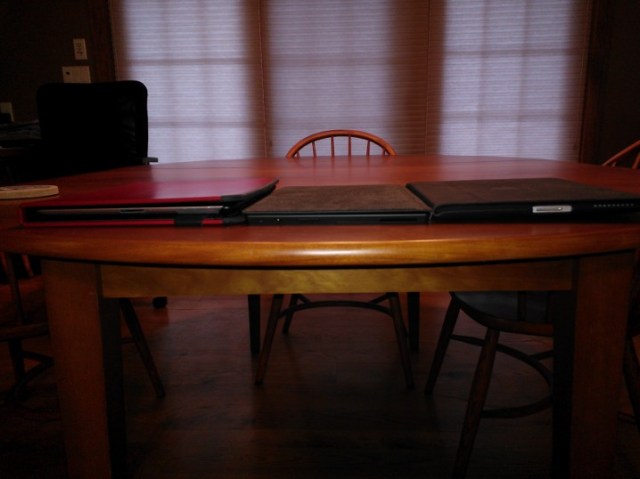
iPad 2, Surface, iPad 1
On the left is an iPad 2 in an aftermarket case. My wife tried at least half a dozen different cases (including the Apple Smart Cover) before settling on this one for its combination of a good hinge and looks. She also has a separate Bluetooth keyboard that, of course, she never has with her. I almost piled it on top just to make a point but felt that was overkill. On the right is an iPad 1 in Apple’s original sleeve-style case. In the middle is a Surface with the Type Cover attached. Note which is the thinnest tablet in actual usage configuration? The Surface blows away the iPad 2 and is significantly thinner than the iPad 1. In fact if I didn’t mind the thickness of the iPad 1 (which I carried around constantly for over two years) then I’d be ok carrying around the Surface even with a slightly thicker Type Cover! How about weight? The Surface with Touch Cover and the iPad 1 in its sleeve cover come in at nearly identical weights, about 31 ounces. And my wife’s iPad 2? It is a whopping 37 ounces! So my point is, while the Surface is competitive in raw weight and size it may be outstanding in real world usage configuration. Especially if…well, you’ll have to wait for it.
Let’s talk about Windows RT purely from a tablet perspective. The UI is inviting. The live tiles are awesome. It takes some getting used to, but no more than any other recent touch-oriented UI. Mary Branscombe recently made a great point, “was pinch zoom intuitive before six months of training videos disguised as ads”? No. Six months from now everyone will think that swiping in from the edge of the screen is a completely intuitive way to bring up menus.
Windows RT, and thus the Surface, currently has a relatively small library of applications available. But it is growing fast. Twice last week I tweeted or blogged about how I missed some application that I’d been using on the iPad. Within a couple of days, once within hours, the missing app appeared in the Windows Store! Right now between most of my high-usage apps actually being available and the fact that having full IE10 lets me fill in with just about any web site (except for Flash limitations) I’m having a good tablet experience. And based on the initial response to Surface, and general likeliness of large numbers of Windows 8 systems being purchased or upgraded, I think the library of Metro (aka Windows Store) apps is going to continue to grow and grow fast. Bottom line: Don’t let the size of the Metro app library keep you from getting a Surface if you otherwise find it a compelling offering.
Now we’re going to get to the core of the matter. What really makes the Surface difference. In your hands it is, at worst, yet another tablet. Prop it up on a table or other flat surface and something magical happens. The weaknesses of typing on a virtual keyboard or positioning on a capacitive touch screen fade away and you get all the benefits of a real keyboard and pointing device. Sure that shows up in simple ways, like being able to easily and accurately type in a password. For real magic though take a look back at that first graphic I posted. While walking around with the Surface in hand it would land in the same place on the Consumption/Creation scale with the iPad. But put it down, even on your lap, and it takes a giant leap in Creation capability.
Look at that graphic again. It was created using Microsoft Powerpoint running on the Surface. The Surface was on my lap, hinge open, with my using the Touch Cover’s keyboard and trackpad to create the slide. It isn’t a terribly complex graphic, but creating and aligning all those text boxes, resizing arrows, etc. is work. In particular it takes high precision pointing, something that iPads completely lack. Windows RT has full support for high precision (e.g., mouse and trackpad) pointing. Both the Touch Cover and Type Cover have trackpads! The Surface would also work with a Bluetooth or USB Mouse for even greater precision if, for example, you decided to use Surface at your desk. But I was just sitting around in the Mall waiting for my wife’s eyeglasses to be ready when I decided I wanted to create that graphic. Surface meant I could do it then and there instead of waiting to get home to an old-fashioned PC.
And this long wordy blog posting? I could have created it with the Touch Cover but decided it would be great to give the Type Cover a try. So I’m sitting at the kitchen table writing this on my Surface with Type Cover. How different is it from what the experience would be on my trusty (and very mainstream) two-year old Toshiba Portege 705 notebook? None at all. Well actually it is a little better, because the trackpad on the Type Cover actually works better than the one on the Portege!
This brings us to that third explanation for the 10.6″ screen. With the slightly longer tablet Microsoft is able to put a nearly full-size keyboard on the Touch and Type Covers. And if you want an odd observation, it puts the screen more in the category of notebooks (typically 11″ and up) instead of netbooks (which were typically under 10″). Basically though between the size Microsoft has chosen, the high-resolution display they’ve standardized on, the covers with integrated keyboards and pointing devices, and software like Microsoft Office the Surface is a good Content Creation device. And the real magic is, you don’t give up on the great characteristics of a tablet to get the creation capabilities of a notebook. It is difficult, extremely difficult in fact, to find tradeoffs that Microsoft had to make in Surface in order to have a good Content Creation device that detract from it being a great tablet. The greater orientation to Landscape use may be one, but only if you are really married to using a tablet primarily in Portrait orientation.
A little on the Touch vs. Type Covers and then I’ll end this even though there is more to point out. I had no trouble adjusting to the Touch Cover and was fully productive with it almost instantly. That said, I certainly can type faster on Type Cover. The Type Cover is thicker, but as I pointed out that would still leave a Surface about the same thickness as an iPad 1 with Apple’s original case. Not bad at all if you are going to be doing a lot of typing. So I think the tradeoff is that if the keyboard is just a “nice to have” feature for entering text while you are sitting down, or you can’t stand virtual keyboards, or you like having it on the odd chance you’ll need to write a long email or make a Powerpoint slide, then the Touch Cover is for you, However if you know you are going to be using the Surface as a notebook substitute much of the time, then you my just want to pay the price (both in thickness and a little more money) for the Type Cover.
What I’ve seen of the Surface also brings the forthcoming Surface Pro. The Surface is meant to be a tablet with a decent amount of Content Creation capability. It is tablet first and second, notebook substitute third. The Windows 8-based Surface Pro, with its ability to run legacy desktop applications, digitizer for accurate pen input, and other features puts use as a notebook substitute almost on par with using it as a tablet. Some users will use it as a tablet first and notebook second, but others will use it as a full on replacement for a notebook that also happens to be a tablet. As with the Surface, the Surface Pro should exact fairly minimal tradeoffs to let it fulfill both roles.
The magic of the Surface is that you can use it all day purely as a tablet without paying a penalty for its ability to do Content Creation. That magic is enabled by Windows RT, but it is really brought to life by the Surface hardware. For any given user the choice of a Surface, another Windows RT or Windows 8 device, or indeed an iPad (or Android tablet) is going to come down to a lot of personal preferences. Sweeping attempts to position one or another as best don’t actually mean much. Where Surface, and Microsoft’s overall approach with Windows RT and Windows 8, shines is when you have a need to do Content Creation. Whether that is replacing some (or all) of your current use for a notebook or desktop computer, or just a desire to be more productive than is possible with a virtual keyboard, it is the place where the Surface shines.


 Hal's (Im)Perfect Vision